

Introducing Scheduler
The Scheduler feature empowers you to automate your Lyzr agents to work autonomously, moving beyond manual triggers to consistent, scheduled operations. You can set specific recurring times for an agent to run and monitor its performance through historical execution data to ensure reliability.1. Scheduling Workflows (New)
Lyzr Studio now brings native scheduling to the Workflow Builder. This allows you to automate entire business processes, triggering a chain of agents, logic gates, and API calls simultaneously.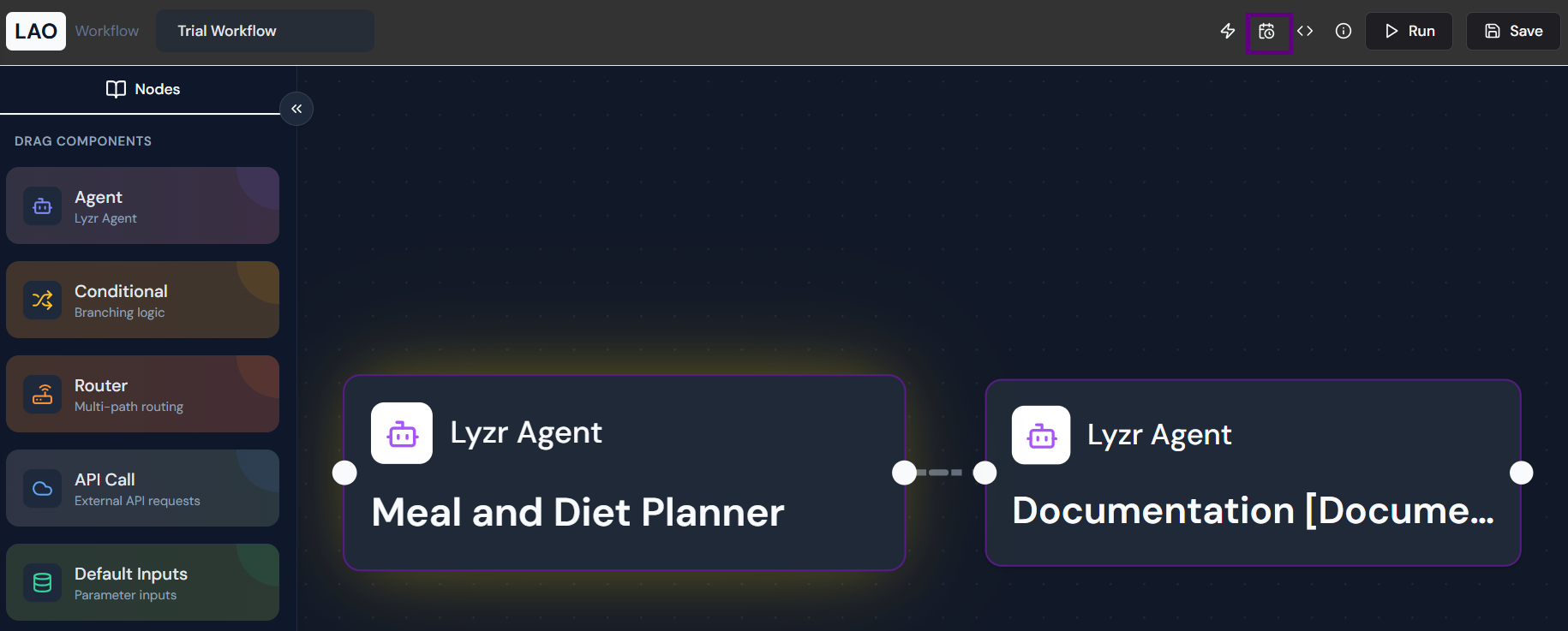
- Accessing the Workflow Scheduler: Open any workflow (e.g., “Trial Workflow”) and locate the Calendar icon in the top-right utility bar.
- Automation Scope: When the scheduler triggers, it executes the entire connected graph. It is the “heartbeat” for your end-to-end automated pipelines.
2. Scheduling Individual Agents
For simpler, task-oriented automation, the scheduler remains available within the Agent Studio. This is ideal for repetitive tasks that do not require complex branching logic or multiple personas.- Accessing the Agent Scheduler: Navigate to the Agents module and open the configuration for a specific agent.
- Automation Scope: Triggers the individual agent’s Role and Goal based on the recurring input provided.
Configuration & Controls
While setting up a scheduler, you have access to granular configuration options to customize how and when the agent operates:- Scheduler Name: Assign a specific name to the scheduler for easy identification within your dashboard.
- Flexible Timing Options: Timing is configured through five distinct specialized tabs:
- Minutes: Set recurring intervals between 30 and 60 minutes.
- Hours: Define hourly intervals (1-24) and specify the exact minute for execution.
- Days: Select specific days of the week (e.g., Monday through Sunday) for precise weekly routines.
- Months: Schedule monthly tasks (intervals of 1-12) with options for specific days of the month and specific times.
- Cron: Use standard Cron expressions for complex, custom scheduling needs.
- Execution Reliability:
- Max Retries: Configure up to 10 retry attempts if an execution failure occurs.
- Retry Delay: Set a delay (up to 60 minutes) between retry attempts to allow for system recovery or transient error resolution.
- Scheduler Input: Define the specific command, prompt, or task input the agent should execute when the trigger occurs (e.g., “Execute it”).
Timing Configuration Interfaces
The following interfaces demonstrate the granular control available for each scheduling frequency: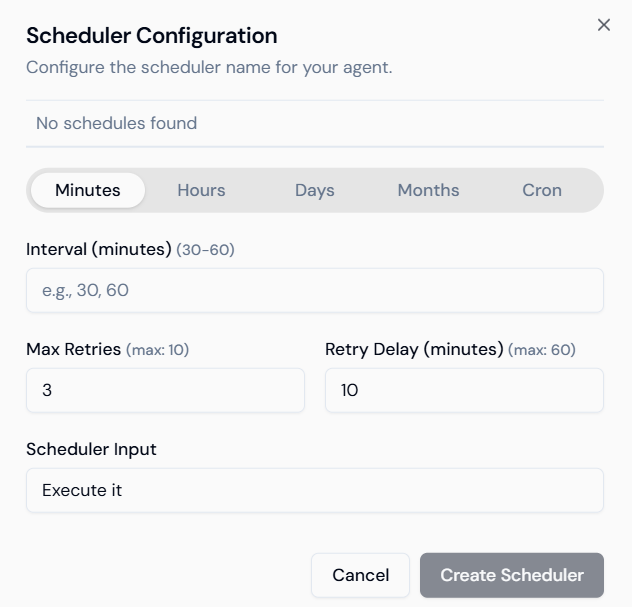 Figure 1: Setting sub-hourly intervals with retry logic.
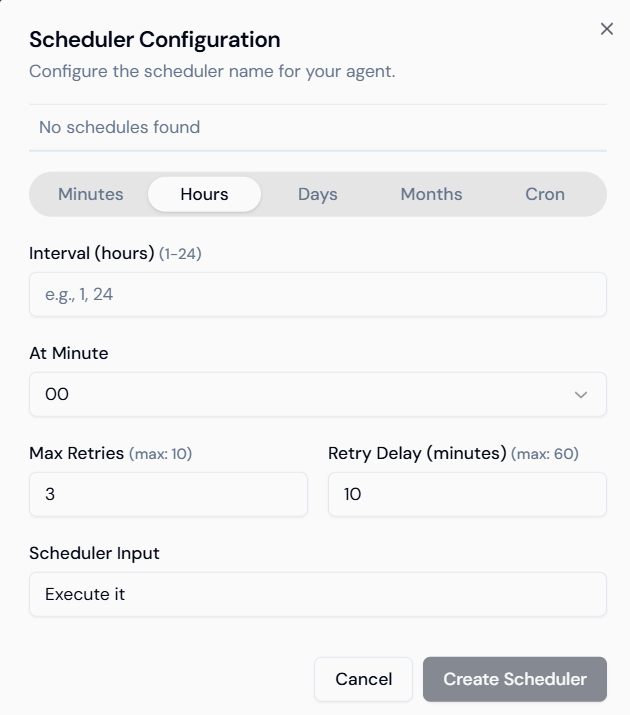 Figure 2: Configuring hourly triggers and specific minute starts.
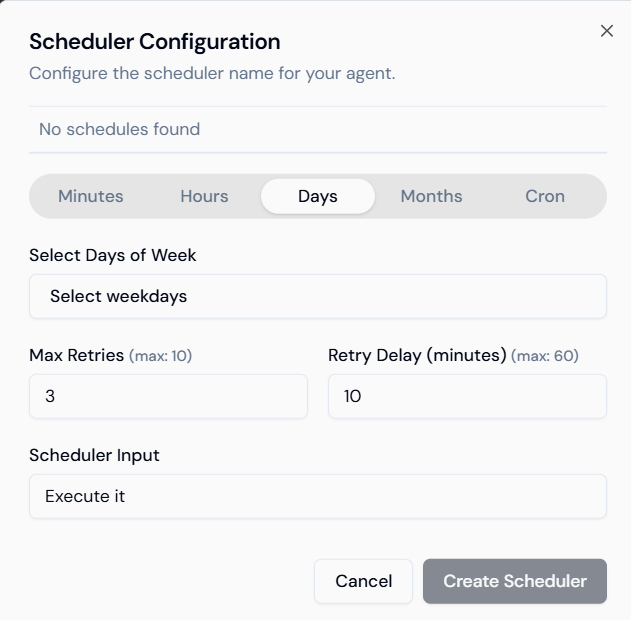 Figure 3: Selecting specific weekdays for recurring agent tasks.
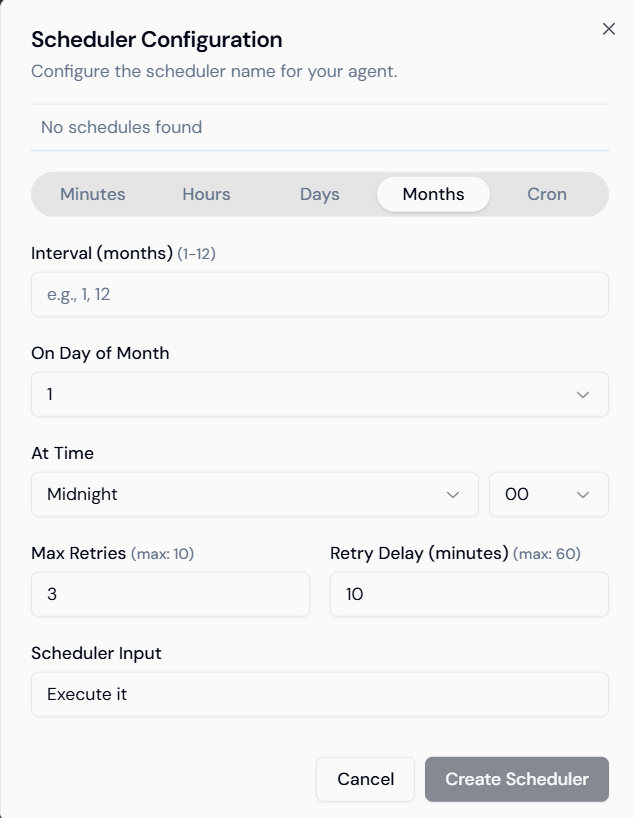 Figure 4: Monthly scheduling with date and time specificity.
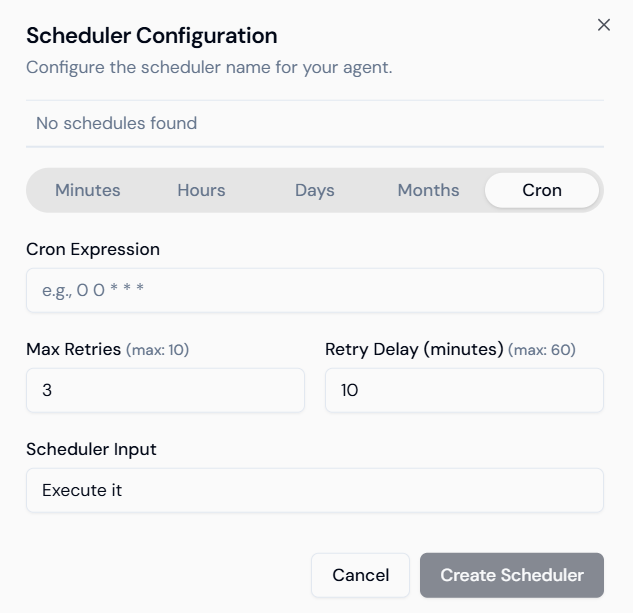 Figure 5: Advanced scheduling using standard Cron expressions.
Monitoring Executions
The Executions dashboard provides a transparent history of all scheduled runs, essential for auditing and troubleshooting automated workflows.- Status Tracking: Instantly view whether a run was a Success or Failed.
- Error Logs: If an execution fails, the dashboard notes the specific reason (e.g., “Request Timeout”), allowing for targeted fixes.
- Timeline: Track the exact recency of executions (e.g., “6 hours ago”, “10 hours ago”) to ensure the scheduler is operating on its intended cadence.